
Settings
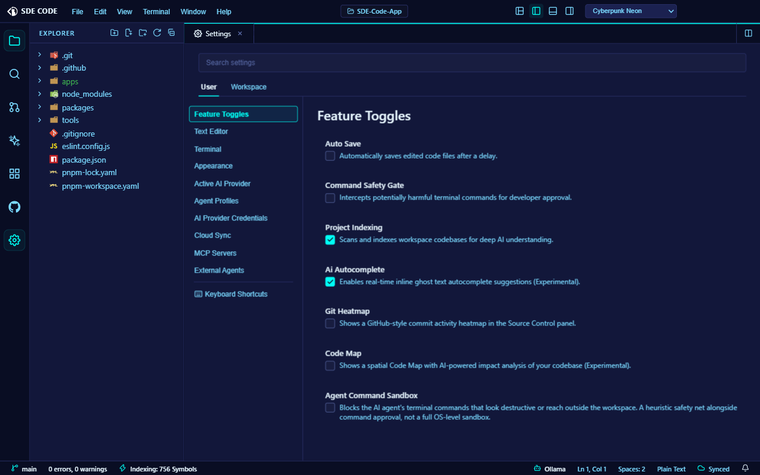
Scope: User vs. Workspace
Most settings are User-scoped — they follow you across every project. Two categories are also Workspace-scoped and travel with the project instead: Feature Toggles and Toolchain. A workspace value overrides your user value for that project only, with a Reset to User value action to drop the override and inherit again. Security-adjacent categories (credentials, agent tool permissions, sync) are deliberately kept User-only.
Every setting is searchable from the search bar at the top of the Settings panel, across all categories at once.
Categories
- Feature Toggles — a generic on/off flag system that drives which parts of the app are turned on; each flag can be set at User scope or overridden per Workspace.
- Text Editor — font size, tab size, word wrap, minimap, line numbers, breadcrumbs, inlay hints, and Vim mode (see below).
- Terminal — font size, cursor style (block / underline / bar), cursor blink, and scrollback length.
- Appearance — active color theme, including any you’ve installed from the Extension Marketplace.
- Active AI Provider, Agent Profiles, AI Provider Credentials, MCP Servers, External Agents — the full AI configuration surface; see AI Assistant & Agent Mode.
- Cloud Sync — see Cloud Sync & Account.
- Toolchain (Workspace-only) — see below.
Editor display settings
Beyond font/tab/wrap, three toggles are easy to miss: the minimap, the breadcrumbs bar above the editor showing your symbol path, and inlay hints — inline parameter-name and inferred-type hints for TypeScript/JavaScript, rendered directly in the code.
Toolchain (per-project interpreters)
Pin an explicit Python or Node interpreter path for the current project from Settings → Toolchain. It’s written to .sde/toolchain.json in the project root (safe to commit, since it travels with the project) and prepended to the PATH of every new terminal you open — so python, node, and anything a task or Agent Mode runs resolve to the interpreter you pinned, not whatever happens to be first on your system PATH.