
Extensions
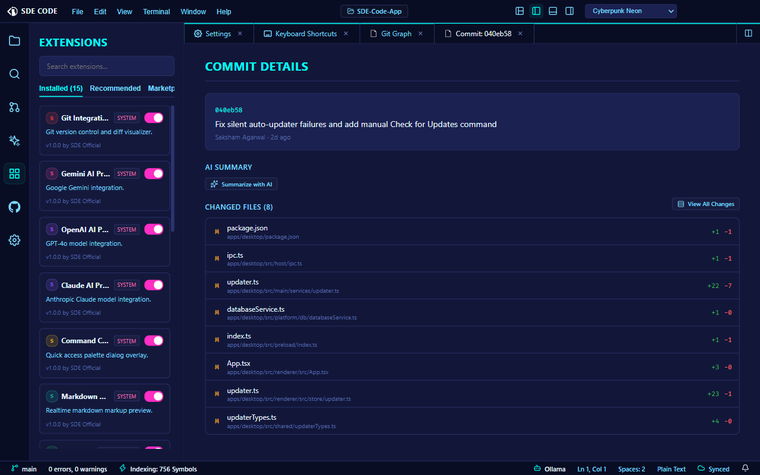
Installing extensions
Open the Extensions panel from the Activity Bar to browse the marketplace — themes, language servers, debug adapters, snippets, and AI tools. Install with one click.
Enabling or disabling an extension defaults to your global (User) setup, but you can override that per-workspace — turn an extension off for just one project without touching its global state everywhere else. A Reset action drops the override and goes back to inheriting your global setting.
What extensions can contribute
An extension manifest can declare, among other things:
- Themes — full color themes, picked from Settings → Appearance
- Language servers (
contributes.languageServers) — powers completion/hover/diagnostics for a language - Debug adapters (
contributes.debugAdapters) — powers the Debugger for a language - Language definitions — syntax highlighting for a new language
- Snippets and commands
- Walkthroughs — a step-by-step onboarding checklist for the extension, with its own completion tracking; these show up automatically on the Welcome page alongside the built-in getting-started checklist
- AI providers — a new model backend added to the AI provider picker
- AI tools — new agent-callable capabilities Agent Mode can reach for
- Context providers — extra context automatically injected into every AI query, without the user having to ask for it
Building your own
Scaffold a new extension with the SDK’s CLI:
npx @sde-code/sdk init my-extensionThis creates a working extension project you can develop against the same SDK types the built-in system extensions use.
For themes and snippet packs specifically, you don’t need the CLI at all — the Extensions panel’s Publish tab has guided, step-by-step creator wizards for both: pick colors (or describe the theme you want and let AI generate a palette) with a live preview for themes, or fill in prefix/body/description entries for a snippet pack, then publish straight from the wizard.
Publishing
Once ready, publish straight from the Extensions panel’s Publish tab — it packages your extension and uploads it to the marketplace under your account, validated against your authenticated publisher identity.