
Interface & Layout
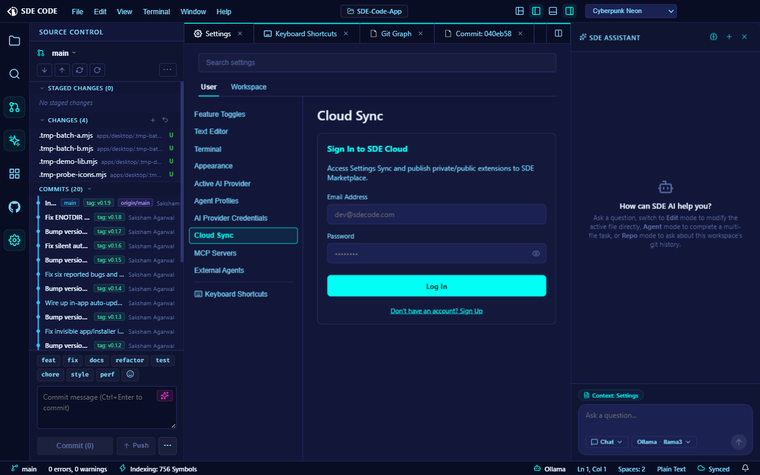
Zen Mode
Hides the Activity Bar, both sidebars, the status bar, and the terminal, leaving just the editor — toggle it via the view.toggleZenMode command in the Command Palette. Exiting restores exactly what you had open beforehand (not just “reopen everything”): if only the left sidebar was open when you entered, only the left sidebar comes back.
Split Editor
Click the Split Editor Right button in a tab’s toolbar (or press Ctrl+\ / Cmd+\) to duplicate the active tab into a new pane alongside it. Drag a tab from one pane’s strip onto another to move it between panes, and close a pane’s X to close every tab in it and remove the pane (the last remaining pane can’t be closed). Panes collapse automatically once emptied.
Opening the same file in two panes gives each one an independent buffer, not a mirrored view — edits in one pane don’t appear in the other until you save and the other reloads. Useful for comparing two parts of the same file side by side, but worth knowing going in.
Tab management
Right-click (or double-click) a tab for Close, Close Others, Close to the Right, Close Saved, Close All, Copy Path, and Copy Relative Path (relative to the workspace root). Tabs are drag-reorderable within a pane, and dragging one onto another pane’s strip moves it there — the same mechanism Split Editor uses.
Terminal sessions
Open several terminal sessions side by side as separate tabs — each is auto-numbered (“1: powershell”, “2: powershell”, …, numbers aren’t reused after you close one) and can be renamed to whatever’s clearer for what it’s running.
Bottom panel customization
The Terminal/Problems/Ports/Output/Debug console tab strip is fully customizable:
- Drag to reorder the tabs
- Right-click a tab to Hide it (you can’t hide the last visible one) or, for tabs with a count badge like Problems’ error count, toggle Show/Hide Badge
- The “…” overflow menu gives you a checklist to show/hide any tab, a Position picker (only Bottom is currently supported — other positions are visible but marked “Coming soon”), and Show Labels / Show Icons toggles to switch the strip between icon+label, icon-only, or label-only
Click the chevron in the panel’s corner to Maximize Panel Size — expands it to fill the editor area entirely rather than just resizing taller — and click again to restore it to its exact prior height.
Status bar
Right-click anywhere on the status bar to show or hide any of its indicators individually: Restricted Mode, Git Branch, Problems summary, Project Indexer status, AI Provider, Cursor Position, Indentation, Language Mode, and Cloud Sync.
Notification Center
Toasts for background events (info, success, warning, error) appear bottom-right and mostly auto-dismiss — info and success after 5 seconds, warnings after 8 — except errors, which stay until you dismiss them, so a failure you haven’t seen yet never silently disappears. The bell icon in the status bar shows an unread count and opens a history panel of the last 100 notifications with relative timestamps and a Clear all action; opening it marks everything read.