
Ports & Tunneling
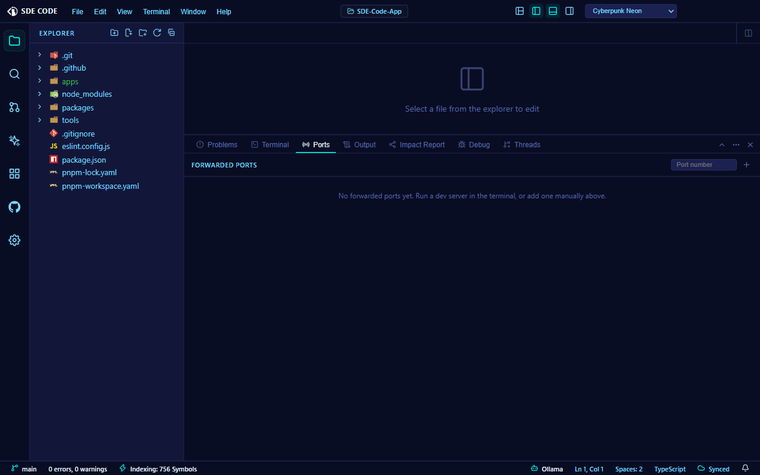
Forwarded ports
The Ports panel auto-detects listening ports two ways — from processes running in an integrated terminal, and from an OS-level scan — and lists each with a source badge (Terminal, System, or Manual). Add a port by hand if something isn’t picked up automatically.
Double-click a port’s label to rename it. Each row gives you:
- Open in Browser — opens the URL in your default external browser
- Open in App — opens it in an in-app Browser Preview tab, inside the editor area, without leaving SDE Code
- Copy URL
Forwarding a port publicly
Click the globe icon to make a local port reachable from outside your machine. You’ll get a confirmation first — “Make http://localhost:<port> public? Anyone with the link can access it.” — since this starts a real public tunnel. Once confirmed, the row shows a PUBLIC badge and the public URL; click the same icon again to stop forwarding and tear the tunnel down.
Only forward a port publicly when you actually mean to share it — anyone with the link can reach whatever’s running on it for as long as the tunnel is up.